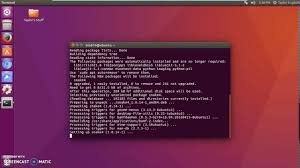
How to install ssh in ubuntu
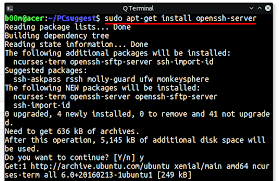
To install and enable SSH on Ubuntu, you need to install the openssh-server package.
Step-by-Step Installation
- Open the terminal application on your Ubuntu system (usually by pressing
Ctrl + Alt + Tor searching for “Terminal” in the applications menu). - Update your package lists to ensure you can download the latest version of the software:
bash
sudo apt update- You can optionally run
sudo apt upgradeto update existing packages. - Install the OpenSSH server package by running the following command:bash
sudo apt install openssh-serverEnter your password when prompted and pressEnterto confirm the installation. The SSH service will start automatically once installation is complete. - Verify the SSH service status to confirm it is running:bash
sudo systemctl status sshThe output should showActive: active (running). It should also beenabledto start automatically on system boot. - Adjust the firewall (if active) to allow incoming SSH traffic on its default port (22):bash
sudo ufw allow ssh sudo ufw enableThesudo ufw allow sshcommand uses a built-in application - profile for SSH. Use
sudo ufw statusto verify the rule has been added correctly - How to Connect to Your Ubuntu System
From another computer (client), you can connect using the ssh command followed by your username and the IP address of the Ubuntu machine where you installed the server:
bash
ssh username@server-ip-address
- Linux/macOS: The
sshclient is usually pre-installed. - Windows: You can use the built-in Windows Terminal or a third-party client like Putty
Next Steps (Security Best Practices)
For enhanced security, especially if your server is accessible from the internet, consider the following:
- Set up SSH key-based authentication to log in without a password.
- Disable password authentication in the SSH configuration file (
/etc/ssh/sshd_config) once key-based login is working. - Change the default SSH port from 22 to a non-standard port to reduce automated attack attempts.
- Disable direct root login via SSH in the configuration file by setting
PermitRootLogin no.
Remember to restart the SSH service after making any changes to the configuration file using sudo systemctl restart ssh