How to control another pc in same network
To access another computer on the same network, enable Remote Desktop (Windows Pro) in Settings, or use File Explorer to navigate the “Network” tab.
Ensure both computers have network discovery enabled, are on the same Wi-Fi/Ethernet, and use the target PC’s name or IP address. Common methods include Windows Remote Desktop, Chrome Remote Desktop, or file sharing.
Key Methods to Access Other Computers.
- Remote Desktop (Windows Pro/Enterprise):
- Setup: On the target computer, go to Settings > System > Remote Desktop and toggle “Enable Remote Desktop”.
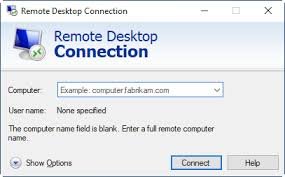
- Access: On your computer, open “Remote Desktop Connection,” enter the target computer’s name or IP address, and log in with its credentials.
- File Sharing (All Windows Versions):
- Setup: Open Control Panel > Network and Sharing Center > Advanced sharing settings. Turn on “Network discovery” and “File and printer sharing”.
- Access: Open File Explorer, click “Network” in the sidebar, and double-click the target computer to access shared folders.
Chrome Remote Desktop: A versatile tool that works across Windows, Mac, and Linux, ideal for cross-platform access via a browser.
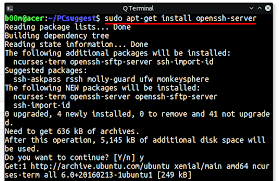
SSH (Linux/Advanced): Use ssh username@IPaddress in a terminal to access Linux machines.
Pre-connection Checklist:
Identify IP/Name: On the target computer, find the name or IP address (via Command Prompt using ipconfig).
Network Profile: Ensure your network is set to “Private” rather than “Public” in network settings.
Credentials: You will need the username and password for the account on the target machine.