How to connect all pc in network
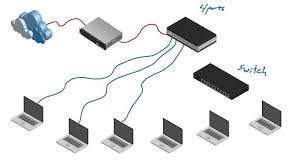
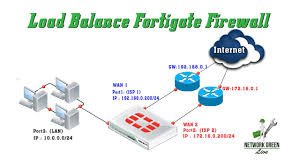
To connect all PCs in a network, plug them into the same router/switch via Ethernet cables or connect them to the same Wi-Fi network.then enable “Network Discovery” and “File and Printer Sharing” in Windows Control Panel (Network and Sharing Center > Advanced sharing settings) to allow devices to see each other.
Step-by-Step Instructions:
- Physical Connection: Use Ethernet cables to plug each computer into a router or switch for the fastest, most reliable connection. Alternatively, connect all computers to the same Wi-Fi network.
- Configure Network Profile: Ensure your network is set to “Private” in Windows, as Public mode restricts visibility.
- Enable Sharing (Windows):
- Go to Control Panel > Network and Internet > Network and Sharing Center.
- Click Change advanced sharing settings.
- Under the “Private” profile, select Turn on network discovery and Turn on file and printer sharing.
- Under “All Networks,” you may turn off password-protected sharing to simplify access, though this is less secure.
- Set Workgroup: Ensure all computers are in the same Workgroup (default is usually
WORKGROUP). - Share Files/Folders: Right-click a folder, select Properties > Sharing > Share to choose who to share with.
- Accessing Other PCs: Open File Explorer, click “Network” in the sidebar, and you should see the other computers.