How to configure tp link extender
Methods for Setup
- Method 1: TP-Link Tether App (Recommended)
- Download the Tether app from the Apple App Store or Google Play Store.
- Connect your phone to the extender’s default Wi-Fi network (e.g.,
TP-Link_Extender). - Open the app, select your extender, and create a login password.
- Follow the on-screen instructions to select your home Wi-Fi and enter its password.
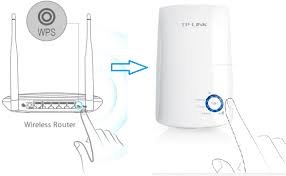
- Method 2: WPS Button (Easiest)
- Plug the extender into a wall outlet next to your router.
- Press the WPS button on your main router.
- Within two minutes, press the WPS button on the extender.
- Wait for the signal LED to turn solid, indicating a successful connection.
- Method 3: Web Browser
- Connect your computer/phone to the extender’s Wi-Fi network.
- Open a web browser and type
http://tplinkrepeater.net. - Create a password, select your host network, and enter its password to connect.
Post-Setup Relocation
- Plug the extender into an outlet roughly halfway between your router and the area with poor Wi-Fi.
- Check the LED light; a solid color (often blue) indicates a good connection, while orange/red indicates it is too far from the router.