Firewall load balancer configuration step by step
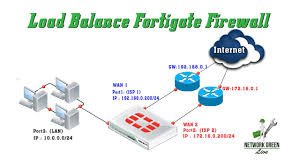
Configuring a firewall load balancer involves creating a server pool of firewalls, defining health checks, setting up a virtual IP (VIP) to receive traffic, and applying load-balancing algorithms (e.g., Round Robin) to distribute traffic across firewall members
Key steps include enabling load balancing features, defining real/backend servers, and applying NAT/firewall policies.
Step-by-Step Configuration Guide
Define Backend Firewall Pool (Service Group)
- Identify the physical or virtual firewall instances that will handle traffic.
- Create a server pool (or service group) and add the IP addresses of these backend firewalls
2. Configure Health Checks
Create a health monitor (e.g., Ping, TCP) to ensure the load balancer only sends traffic to active firewall nodes
3. Create Virtual Server (VIP)
- Define a Virtual IP address and port that will act as the entry point for client traffic.
- Assign the firewall pool created in Step 1 to this virtual server.
4. Select Load Balancing Algorithm
Choose a method such as Round Robin, Least Connections, or Source IP Hash to distribute traffic.
5. Configure Session Persistence (Optional)
Enable session persistence (e.g., Source IP or Cookie) to ensure traffic from a single client sticks to the same firewall node
6. Define Firewall Policies
Create security policies on the load balancer/firewall to allow traffic from the source network to the virtual server IP
7. Configure Network Address Translation (NAT)
Enable NAT on the virtual server to ensure traffic returns to the load balancer correctly (often required for transparent mode).
Common Vendor Examples:
Fortigate (FortiOS 7.4.1+) Go to Policy & Objects > Virtual Servers > Create New > Set type, Interface, Real Servers, and Health Check.
Citrix NetScaler: Configure Firewall Load Balancing with Direct Route and Source IP Persistency.
Palo Alto Networks (ISP LB): Use Network > Virtual Routers to configure ECMP (Equal-Cost Multi-Path) for ISP load balancing.
AWS Gateway Load Balancer: Create a Gateway Load Balancer and an Endpoint service to distribute traffic to virtual appliances.
Sample topology
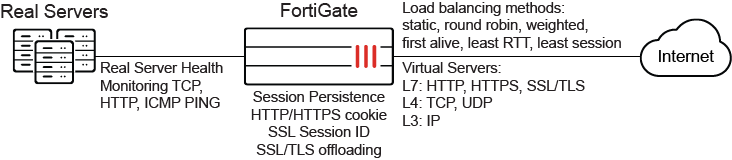
Configure a load balancing virtual server in the GUI
To create a health check monitor:
- Go to Policy & Objects > Health Check.
- Click Create New.
- Set the following:
- Name to Ping-mon-1
- Type to Ping
- Interval to 10 seconds
- Timeout to 2 seconds
- Retry to 3 attempt(s)
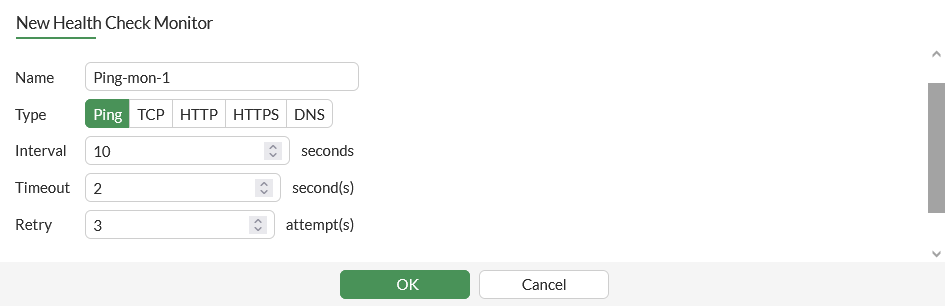
- Click OK.