EIGRP configuration step-by-step
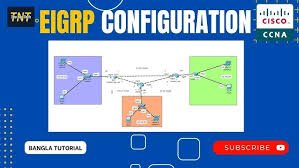
Step-by-Step EIGRP Configuration (IPv4)
- Enter Configuration Mode
Access the global configuration mode on the router.
Router> enable
Router# configure terminal- Enable EIGRP Process
Start EIGRP using an Autonomous System (AS) number (1-65535). All routers in the same network must use the same AS number.Router(config)# router eigrp <AS-number> - Define Networks
Advertise the directly connected networks. Use thenetworkcommand followed by the network address. Optionally, use a wildcard mask for specific interfaces.Router(config-router)# network <network-address> [wildcard-mask]Example:network 192.168.1.0ornetwork 10.0.0.0 0.0.0.255 - Disable Auto-Summary
By default, older IOS versions may automatically summarize networks. Disable this to ensure accurate routing of subnets.Router(config-router)# no auto-summary - Configure Passive Interfaces (Optional)
To prevent sending routing updates to devices that don’t need them (like LAN interfaces), configure interfaces as passive.Router(config-router)# passive-interface <interface-id> - Verify Configuration
Check for EIGRP neighbors, protocols, and routing tables.Router# show ip eigrp neighbors Router# show ip route Router# show ip protocols
Example Configuration
Router1(config)# router eigrp 100
Router1(config-router)# network 10.0.0.0
Router1(config-router)# network 192.168.1.0
Router1(config-router)# no auto-summary
Router1(config-router)# exit
Key Considerations
- Wildcard Mask: While optional, it is best practice to use wildcard masks to specify which interfaces run EIGRP.
- Neighbor Adjacency: If neighbors don’t form, check that the AS number is identical and that network statements cover the interfaces.
- Named Configuration: For more complex, flexible configurations, Cisco suggests EIGRP named mode, which supports IPv4 and IPv6 under one process.