How to set up mesh wifi network
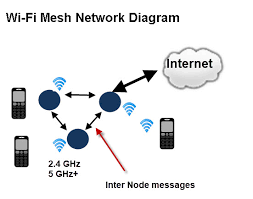
Setting up a mesh WiFi network is generally a user-friendly process that can be completed in about 30 minutes using a smartphone app. Unlike traditional routers, mesh systems use multiple nodes to create a single, unified network throughout your home.
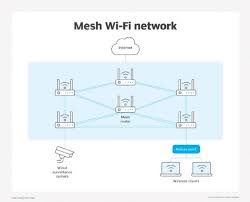
1. Initial Hardware Setup:
- Connect the Primary Node: Plug the first mesh unit (the “main router”) into your existing modem or fiber gateway using an Ethernet cable. The cable should go into the WAN port of the mesh node.
- Power Up: Plug the node into a power outlet and wait for it to boot. Many systems use a pulsing light to indicate it’s ready for pairing.
2. Configuration:
- Create an Account: You will typically need to sign in to the manufacturer’s cloud service to manage the network.
- Set SSID and Password: Follow the app prompts to name your WiFi network (SSID) and set a secure password. Pro-tip: If you use the same name and password as your old router, your devices will reconnect automatically.
3. Strategic Node Placement:
- The “Two-Room” Rule: Place satellite nodes about 30 feet (or two rooms) away from the main unit.
- Halfway Point: A good satellite location is roughly halfway between the main router and a WiFi dead zone.
- Elevation: Place nodes in the open on a shelf or tabletop rather than tucked in a cabinet or on the floor for better signal propagation.
4. Adding Satellite Nodes:
- Sync via App: Plug in your additional nodes one at a time. The app will search for them and “handshake” to add them to the mesh.
- Wired Backhaul (Optional): If your home has Ethernet wiring, connecting nodes via cable (Wired Backhaul) provides the fastest possible speeds and reduces wireless interference.
5. Final Optimization:
- Update Firmware: Once everything is online, check the app for firmware updates to ensure the latest security and performance patches.
- Run a Speed Test: Use the built-in app tool or Ookla Speedtest to verify coverage in every room.
These guides explain how to connect mesh WiFi nodes, optimize placement, and configure network settings: